« Back
User Guide: Updated Password & Account Management

Follow these step-by-step instructions to navigate the new password reset workflow and administrator controls.

The Navy SBIR/STTR Firm Portal has upgraded its authentication process. Access to the portal is now controlled through individual user email credentials.

Important Security Note: Always verify that you are logging into the official portal at navysbirprogram.com or official Navy domain links. Never share your password or password reset links with unauthorized individuals.
1 Initial Password Setup & Reset Email

All users must establish their account password before logging in for the first time:

  1. Navigate to the Login Page.
  2. Click on the "Forgot your password?" link located below the login inputs.
  3. Enter your registered email address (e.g., test@test.com) and click Submit.

Upon submission, the system will display the following notification:

"If an account matching test@test.com was found, password reset instructions have been sent to your email. Please note that email delivery may take up to 5 minutes."

Check your email inbox for a message from Navy SBIR/STTR Program with the subject "Navy Deliverables - Password Reset Request". The email will contain your account username and a unique activation link:

Click on the link inside the email (or copy and paste the full URL into your web browser address bar) to open the Set Your Password screen.

Token Expiration Notice: The password reset link sent to your email contains a security token that expires after 24 hours. If you do not reset your password within 24 hours, you will need to request a new link via the "Forgot your password" page again.
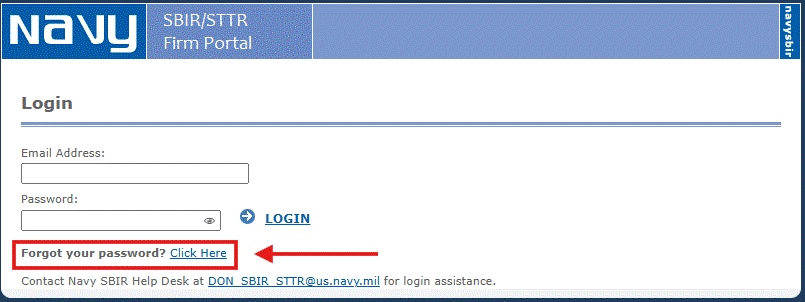
Step 1: Forgot Password Link
Figure 1.1: Forgot Password Link and Confirmation.
2 Setting Your Password & Complexity Requirements

Once you click the link from your reset email:

  • Verify that the password reset page loads successfully.
  • Enter a new password that satisfies all system security rules.
Password Complexity Requirements:
  • Minimum length of 10 characters
  • At least one uppercase letter (A-Z)
  • At least one lowercase letter (a-z)
  • At least one number (0-9)
  • At least one special character or non-alphanumeric symbol (e.g., ! @ # $ % ^ & *)

After creating your password, return to the login screen and sign in using your email address and new password.

Step 2: Password Reset Creation Form
Figure 2.1: Creating your new individual portal password.
3 Firm Administrator Roles & User Management

To ensure account accountability and maintain proper security controls for your firm:

  • Firm Administrators: Each registered firm can have one or more designated Firm Administrators.
  • Managing Users: Firm Administrators can add new users and manage user profiles for their firm. Click on the Edit link in the grid column corresponding to a user to edit their profile information.
  • Granting Admin Roles: Firm Administrators have the ability to promote other firm users to Administrator status.
  • Admin Removal Restrictions: Administrators cannot remove their own admin access. Only another administrator has the authority to revoke or remove another admin's role.
  • Standard Users: Non-admin users can access uploaded deliverables, abstracts, and success stories, but cannot add or manage other user accounts.
Step 3: Firm Admin User Roster
Figure 3.1: Administrator interface for adding and managing firm users.

Need Assistance?

If your email address is not recognized during the "Forgot your password" process or if you need to designate/change your firm's Administrator, please contact the Navy SBIR Help Desk:

Email: DON_SBIR_STTR@us.navy.mil