« Back
User Guide: Submitting & Uploading Contract Deliverables

Follow these step-by-step instructions to navigate the Navy SBIR/STTR Firm Portal and successfully upload your deliverables.

The Navy SBIR/STTR Firm Portal enables authorized awardees to upload deliverables (such as Progress Reports, Final Reports, and Initial Phase II Proposals) associated with Phase I and Phase II contracts.

Important Notice: This site is for Navy topic awardees only. Do NOT upload classified information to this site.
1 Accessing the Portal

To begin the deliverable submission process:

  1. Navigate to the portal and click LOGIN.
Step 1: Click Login
Figure 1.1: Clicking Login on the Portal Home Page.
2 Entering Credentials to Log In

On the login screen:

  1. Enter your registered individual user Email address and Password.
  2. Click the login button.
Step 2: Enter Credentials
Figure 2.1: Enter Credentials.
3 Selecting Contract Deliverables

Once logged into the Home page:

  • Locate and select the Contract Deliverables link.
Step 3: Click Contract Deliverables link
Figure 3.1: Contract Deliverables.
4 Initiating a New Contract Deliverable

From the Contract Deliverables list view:

  • Click the Add A New Contract Deliverable link.
Step 4: Click Add New Contract Deliverable
Figure 4.1: Add New Contract Deliverables.
5 Contract Selection, CUI Marking & Uploading Details

Complete the submission setup fields and CUI requirements:

  1. Select the appropriate contract record from the SELECT THE CONTRACT NUMBER dropdown list, then click Continue.
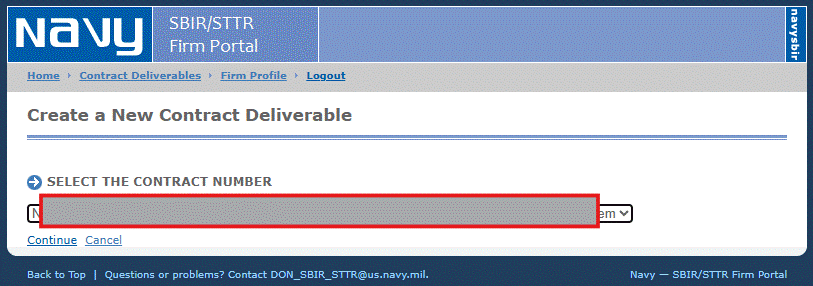
Select Contract Number
Figure 5.1: Select Contract Number and Continue.
  1. On the Create a New Contract Deliverable screen, click the Yes checkbox for "Yes, I have referred to CUI Marking resource document".
  2. For the question "Have you marked your document according to CUI marking requirements", click either the Yes CUI Marking is applied or CUI Marking is not applicable button.
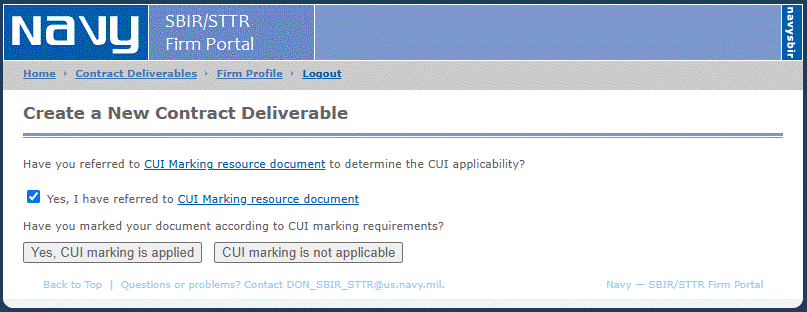
CUI Marking Resource
Figure 5.2: CUI Marking Resources and Requirements Confirmation.
  1. On the award details page, complete the document information:
    • Select the appropriate Deliverable Type (e.g., Final Report - Distribution B) from the dropdown list.
    • Enter a document Title following naming conventions.
    • Optionally, enter a brief Description of your document.
    • Click the Browse... button to select your document file to upload.
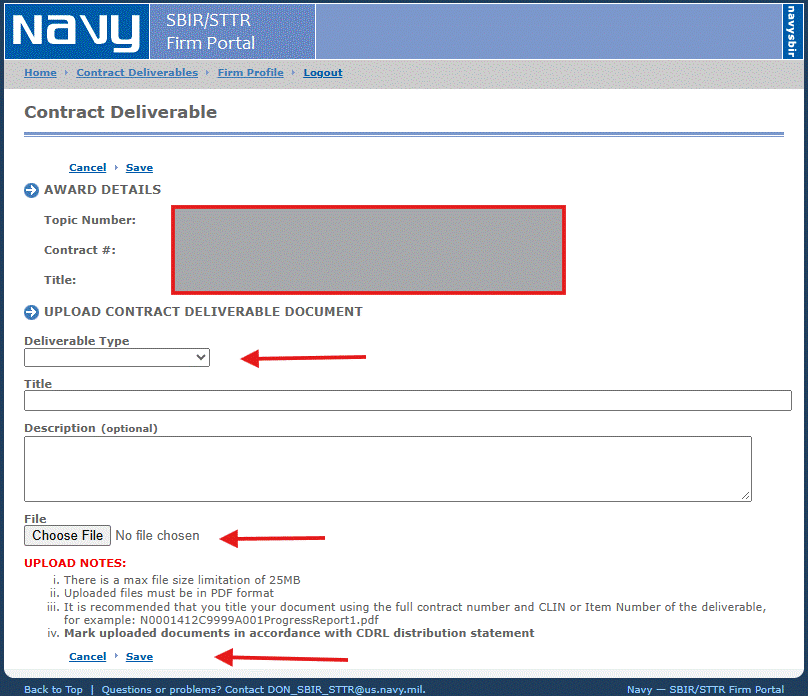
Award Details Page
Figure 5.3: Award Details and File Upload Form.
Upload Guidelines & Notes:
  • There is a strict maximum file size limitation of 25MB.
  • Uploaded files must be in PDF format.
  • It is recommended to title your document using the full contract number and CLIN or Item Number (e.g., 1412C9999A001Progress Report1.pdf).
  • Mark uploaded documents in accordance with CDRL distribution statements.

Click Save to proceed to the review stage.

6 Reviewing and Confirming Your Submission

Review the selected file details carefully:

  • Click the document link to review the uploaded file.
  • If the file is incorrect, click Replace to upload the correct file.
  • Once satisfied that the file is correct, click the Confirm File is Correct button to complete your submission.

You can view your latest submission displayed in descending order by Submit Date in the main Contract Deliverables list.

Need Assistance?

If you have questions about the usage of this site or encounter technical difficulties, please contact the Navy SBIR Help Desk:

Email: DON_SBIR_STTR@us.navy.mil
Note: Questions related to your deliverables or their content should be addressed to your technical point of contact listed in your contract.